powerpoint

New Podcast Episode Now Available! Navigating the Awkward Phase of AI: Embracing AI Tools for Workflows Today, with David Fortin

New episode of The Presentation Podcast available now!

I am excited to dive into the evolving world of AI with David Fortin from Piggy Bank Accountant on our latest episode! Yes, overall we are in an awkward phase with AI adoption, but David shares some interesting thoughts and insights.

David and I focus primarily on how Microsoft Copilot is reshaping the landscape of workflows with so many elements now able to be connected; Microsoft Outlook, PowerPoint, Excel, Teams meetings and file. We also talk about creating better AI prompts and the exciting future of Copilot’s memory and persona features.

Catch these insights and more in this episode! Listen on your favorite podcast app, or at The Presentation Podcast site here. 

By |2025-10-06T08:11:27-07:00October 8th, 2025|Resource/Misc|

Presentation Co-Authoring with Teams, umm, SharePoint – it is confusing, but works great!

Microsoft Teams has become a core element of the TLC Creative Services design studio. As example, this blog post was a collaboration doc in our Social Media Team for me (Troy) to write, a few of our design team to access and prep the images outlined and finally accessed by our Social Media manger to transfer all to this blog post. No emailing files. No syncing files to a server and being uncertain if you have the latest version. We use Teams chat to ask each other questions, connect on Teams calls (sometimes with a webcam on, but more often with a screen share), and access project work files and fill in our timesheets.

Focusing on files stored on Teams, the important thing to know if Microsoft Teams is SharePoint – or at least a new interface for SharePoint. Or maybe a better way to say that is, SharePoint files are now accessed through Teams.

This is a good thing because Microsoft has spent years building SharePoint with features like, security, file history, and collaboration. And the collaboration feature is what we cannot function without (collaboration meaning multiple people can access the exact same file, and edit it simultaneously).

Here is a common workflow for our design team at TLC Creative

  • The project is added to Teams as a new Channel within our “Projects” Team (the concept of Teams vs. Channels is one of the more difficult things to understand and work with!).
  • The presentation(s) is then copied to the Teams folder (as noted earlier, this is really putting the presentation on SharePoint, but without having to deal with SharePoint)
  • The design team working on the presentation open the presentation from Teams – and this is important! Open the presentation in DESKTOP PowerPoint. In Teams click the 3-dot menu next to the file name > Open > Open in Desktop.
  • A presentation can seamlessly have 1-2-5+ people reviewing, editing or presenting.
  • Note: Teams is easy to setup and have people within the same company access files. It gets more temperamental when adding external people, or you being the external person being added to another company’s Microsoft Team (more about our process and some tips in an upcoming post).

How do you know if a presentation is on your local hard drive or on Microsoft Teams?

  • Look at the file name in PowerPoint
  • Local files literally tell you they are local. After the file name is “Saved to this PC”
  • There is a drop-down menu for local files, but it is informational and really of no value.
  • And if it is a Teams file, after the file name is “Last Modified: (time stamp)” and a drop-down menu
  • That drop-down menu for Teams files has a lot of options
  • Rename the file. And the name will be updated on Teams and to anyone that has the file open!
  • Version History. Click the “Version History” at the bottom of the file drop-down for a right action pane to open and provide details on every major update, how made it, and ability to open earlier versions of the file to reference or revived content!

Presentation formatting, and presenting, now evolves around Microsoft Teams for us at TLC Creative. We are focusing Microsoft Teams this month on The PowerPoint Blog.

-Troy @ TLC

By |2025-05-05T07:14:48-07:00May 5th, 2025|Resource/Misc|

Is Helvetica Bad?

Helvetica is a classic and widely used font known for its clean and modern appearance. However, when a PowerPoint presentation created on a Mac is opened on a Windows computer, the Helvetica font used might not display as expected. This issue stems from the differences between how macOS and Windows handle fonts.

On a Mac, Helvetica is one of the default Mac OS system fonts. This version of Helvetica is optimized for macOS and integrates seamlessly into the operating system – like how Aptos does for Windows OS (although Aptos is not locked to Windows and can be installed on a Mac!). But the Helvetica available on Mac devices is unique to the macOS, and only usable on Mac devices. A windows device does not see the Mac version of Helvetica as identical to any version that can be installed on Windows. The files available for Windows differ from the macOS version in subtle ways, such as variations in spacing, kerning, and glyphs. Like any time PowerPoint replaces a font not installed with another font, content is not displayed as designed and things like line wraps can change.

Because the version of Helvetica used Mac devices cannot be used outside a Mac (such as on a Windows device), it should not be used on presentations that will be open on a Windows system.

But I have Helvetica installed (on my Windows device)! Yes you do, but it is a different version of Helvetica, and PowerPoint sees the Mac version and the installed version on the Windows computer as different fonts (and they are; remember, different spacing, kerning, glyphs). Same name, but different…

While Helvetica is a widely loved and effective font, its cross-platform compatibility can cause confusion when switching between macOS and Windows. It is not that Helvetica is inherently problematic, it is a good font. But rather the Mac version is only available on Macs, and that makes it a bad choice for cross-platform use.

An opinion from the TLC Creative design team

By |2025-03-16T08:55:13-07:00March 17th, 2025|Resource/Misc|

What are Variable Fonts… and Can PowerPoint Use Them?

Variable fonts are the future for print, web, app, and Microsoft PowerPoint. Variable fonts are a font file type that stores a much larger range of design variants all within one font file. The common current file types are .OTF and .TTF; open type and true type respectively. These fonts use a separate file for each font style available (e.g. condensed, heavy, italic, thin, etc.). But variable fonts not only contain all the font styles in a single file, but they do not have the same font style and specialty glyph limits – by a lot!

Unfortunately, variable fonts are not used everywhere yet, and are not recognized by many apps – including PowerPoint. Everything about them sounds great – and the TLC Creative team is excited to see the design world shift to variable fonts. In reality, web browsers are currently the main apps that recognize and have the ability to leverage variable font features. PowerPoint and Adobe PDF, for example, do not like variable fonts, and can only display the base font style correctly. Encouragingly, Microsoft has started implementing variable fonts into the Windows OS font engine (see note below), and other Adobe apps recognize and can use variable fonts to varying degrees.

DYNAMIC STYLING AND ANIMATION EFFECTS

While it may be a while before we see the animation capabilities that variable fonts bring to typography, it is something we are looking forward to. The above example of web-based variable font animation effects is from this Google page – imagine having this type of animation on slides!).

MICROSOFT AND VARIABLE FONTS

The exciting news is the Microsoft font engine has already been updated to be compatible with variable fonts, and all of their styling features. Further, everyone with Windows has at least two variable fonts: Bahnschrift and Selawik. Bahnschrift offers 13 variations, all housed in a single font file. Selawik only offers 4 font variations in its single file. Ironically, because of legacy and compatibility concerns, most everyone will find these fonts on their computer in the older .ttf format – and multiple individual files… But trust me, Windows is Variable font ready.

ADOBE PHOTOSHOP AND VARIABLE FONTS

One of the easiest apps to see the formatting features of variable fonts is Photoshop CC. Photoshop not only recognizes the multiple font style options in the single variable font file, but allows full control of some of the styling options. For example, in the Character panel, the “weight” and “width” settings use sliders to truly customize for a completely vector-based and non-destructive styling. How the characters of a variable font are displayed for that project is based on the variable font styling applied.

The Bahnschrift font is a Microsoft font. Adobe apps can use Adobe TypeKit fonts (that are automatically locally installed) and all of the Microsoft fonts because they are also installed on the computer.

In Microsoft fonts we cannot do this, but in Photoshop, the Microsoft Bahnschrift variable font is recognized as a variable font and several variable font formatting options are available.

THE FUTURE

Variable fonts are the future, and we are hopeful that that future comes to PowerPoint sooner than later so we can have better typography styling – and integrate the dynamic styling options into animation effects!

Currently, it is better to steer clear of using variable fonts in PowerPoint presentations, as PowerPoint is unable to access most of the styling options and none of the display customization options…

-The TLC Creative design team (special thanks to Christie for creating this article)

By |2025-03-02T12:50:15-08:00March 12th, 2025|Software/Add-Ins|

How to Use – and install – a Custom Font for PowerPoint

Custom fonts are tricky, because PowerPoint needs them installed on the computer to accurately display text with the custom font. However, Microsoft PowerPoint does not tell us if a font is missing on that computer, and “helps” us by swapping the missing font with a Microsoft font, which may or may not (and usually does not) keep the slide formatting as intended. Often, we are left looking at slides wondering why the text is jumbled and wrong… with a puzzle, a missing piece is obvious. With PowerPoint, the user needs to first on their own identify the piece is missing, then work on fixing the issue.

Once you know custom fonts are needed and missing, the solution is to install the custom font(s) on the computer, so PowerPoint slides display as they were designed.

Here’s a quick how-to for adding custom fonts to PowerPoint, with two notes:

  1. these steps are for Windows computers. Mac users have a similar process (using the default FontBook app).
  2. These steps assume you have know what custom fonts are needed, and have the font files on the computer (SlideWise is a great third party app for auditing a presentation and knowing what fonts are used on the slides).

The process is easy on Windows computers. First close the PowerPoint app. In File Explorer, right-click the font(s) and select “Install”. Done. The font will be added to the computer’s font folder (c: > Windows > Fonts).

It’s important to note that if you have PowerPoint open when you install the font, it will not show up in the font dropdown menu. Simply close and restart the application. Don’t just close and reopen the presentation; the entire app needs to be closed and then restarted. When launching PowerPoint includes all installed custom fonts in the font library dropdown menu (same for Word, Excel, etc.).

Troy @ TLC

By |2025-03-14T08:55:42-07:00March 10th, 2025|PowerPoint, Tutorial|

How to use Google Fonts in PowerPoint

Google Fonts is a great resource for finding and using custom fonts for design projects; print, app, web, and PowerPoint.

Google Fonts is one of the most extensive libraries of royalty-free and open source fonts. Read the details, but I interpret the FAQ that these fonts can be used anywhere!

A unique feature of Google Fonts is that they can be used dynamically. For example, when creating a website that uses Google Fonts, users will be able to view the Google Font content without having to install the fonts on their device. However, PowerPoint does not have the ability to dynamically load Google Fonts. That said, because Google Fonts are available as a downloadable file, they can be used for PowerPoint presentation the same way as any other custom fonts (see our “How to Install Custom Fonts” post for more details).

NOTE: this process is for installing Google Fonts on Windows or Mac computers. Microsoft Teams and web-based presentations will not be able to use custom fonts unless they are embedded (and even then, there are lots of variables on if the custom fonts will display).

  • Head over to the Google Fonts website at https://fonts.google.com/ to browse the library, by searching for a specific font family or using their various filters.

  • After choosing a font, simply click the “get font” button in the upper right corner. and download the .zip file.
    NOTE: Google fonts are available in a variety of file formats; OTF, TTF and the newer variable font format, WOFF. Currently, it’s best to install and use the OTF format for maximum compatibility.

  • Uncompress the .zip folder. Install the .OTF file(s) by right clicking the file and selecting “Install”. Or double-click the font to open the preview, and use the install button here.

TIP: Because Microsoft PowerPoint does a poor job of informing users of custom fonts needed for a presentation, be sure to include custom font info in the slide deck (as a hidden slide, or in the Presenter Notes on slide 1).

By |2025-03-03T16:38:13-08:00March 3rd, 2025|PowerPoint, Resource/Misc, Software/Add-Ins|

Free PowerPoint Color Schemes Based on the Pantone 2025 Color of the Year

Pantone’s Color of the Year for 2025 is #17-1230, “Mocha Mousse”.

As an internal design project, Amber on the TLC Creative presentation design team, created a custom color scheme inspired by the Mocha Mousse color. Download this 3 slide sample, with custom PowerPoint color scheme (that can be applied to any PowerPoint file), HERE.

Jake on the TLC Creative presentation design team, created this custom color scheme using the Mocha Mousse color as the inspiration. Download this 3 slide sample, with custom PowerPoint color scheme (that can be applied to any PowerPoint file), HERE.

By |2025-01-03T14:16:58-08:00January 13th, 2025|PowerPoint, Templates/Assets|

TPP e208 – Mike Power

One of the superpowers of PowerPoint is its ability to allow third party add-ins to expand its functionality. Neuxpower is the software company behind NXPowerlite and Slidewise, two add-ins installed on every computer at TLC Creative Services. Mike Power of Neuxpower spends some time with us talking about PowerPoint, add-ins, and what’s new on the horizon!

Join the conversation through your favorite podcast app, or at the episode 208 page, with shownotes.

Click here to listen.

By |2024-10-11T06:42:38-07:00October 15th, 2024|PowerPoint|

New episode on The Presentation Podcast with Julie Terberg

If you use PowerPoint, having a base understanding of font file types and options is important. A new whitepaper by Microsoft MVP for PowerPoint Julie Terberg, titled “Choosing fonts for PowerPoint templates” is a (free!) great resource. Displaying letters, numbers, and symbols takes layers of complex behind-the-scenes code. And if a non-Microsoft font is used, the complexity becomes more complex – and if the non-Microsoft fonts are not available on that computer, or not recognized on that computer, the slide design can go to $#@!. On this episode Troy, Nolan, and Sandy enjoy time conversing with Julie Terberg about fonts in PowerPoint presentations. 

Click here to listen.

By |2024-08-30T14:39:18-07:00September 3rd, 2024|Resource/Misc|

Make PowerPoint Rounded Corners the Same!

Rounded corners are a subtle design accent that is easy to apply to shapes, photos, even videos. But why is there no way to make the corner radius the same across multiple objects on a slide!

Fortunately, the capability is within PowerPoint, just not exposed on the Ribbon or any of the object formatting dialogs. The ToolsToo add-in suite has added the functionality to easily select multiple rounded corner objects and make the corner radius the same on all (yay 3rd party add-ins!).

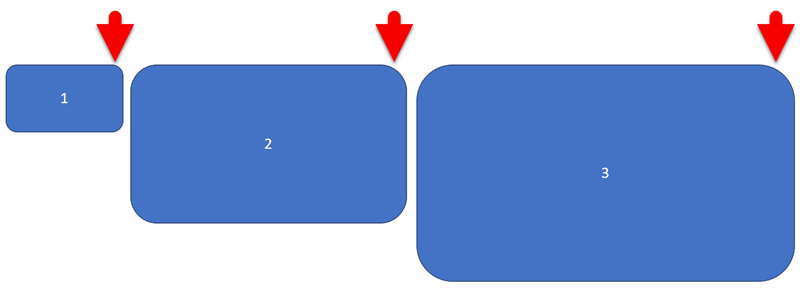
Here is my example slide with 3 rounded corner rectangles. Because the rectangles are different sizes, and the corner radius scales with the shape (where is the “locked corner radius” option Microsoft!) the corner radius is different on each of the rectangles.

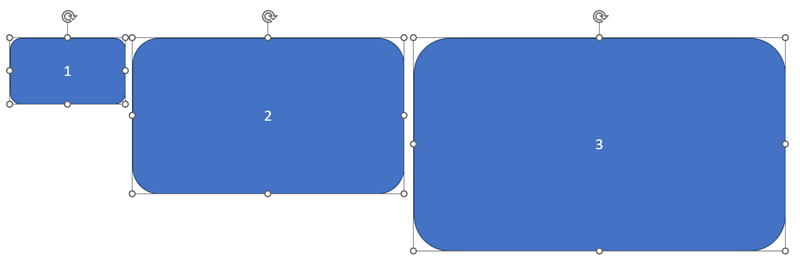
I have selected all 3 shapes, selecting box #1 first, because this is the reference object and all objects will match its corner radius.

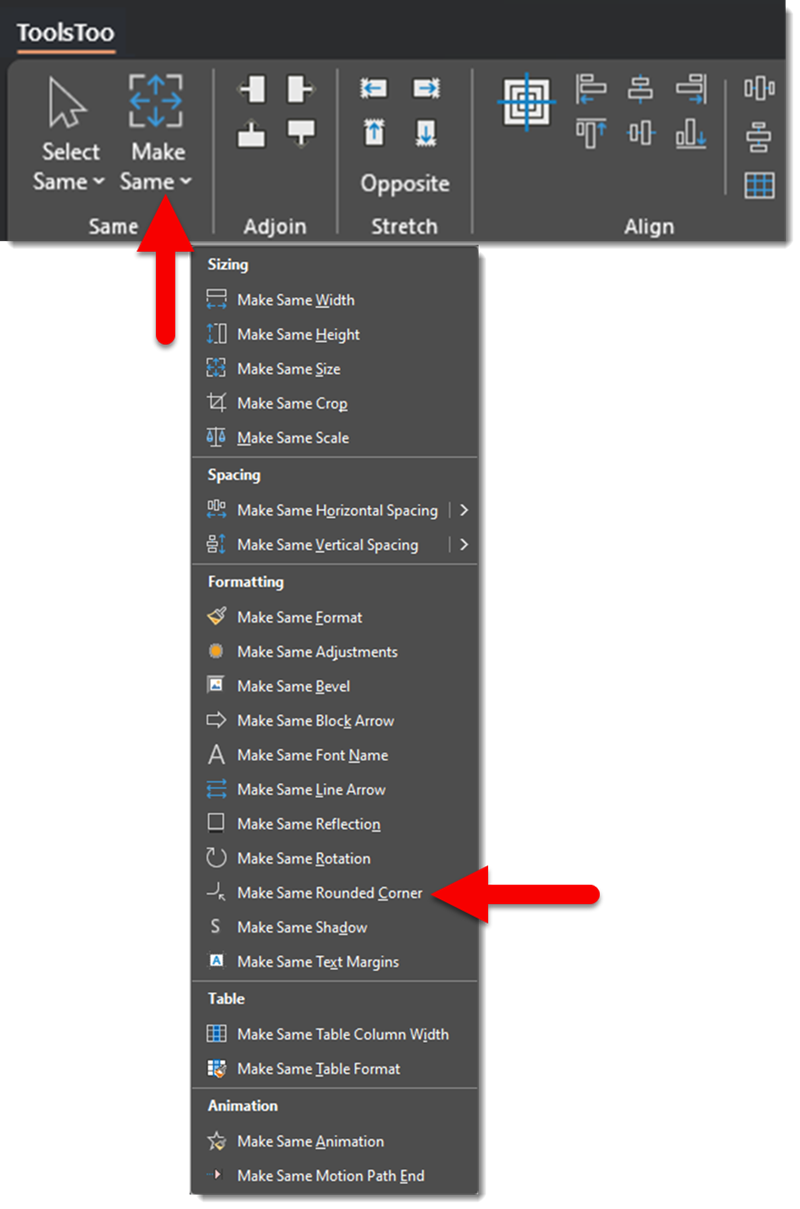
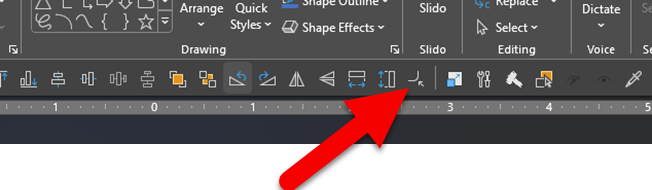
Go to the ToolsToo ribbon > Make Same > Make Same Rounded Corner

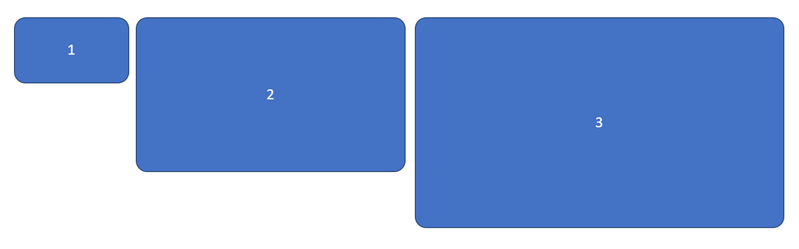
Done! All 3 rectangles now have the exact same corner radius (yay!).

TIP: because I use this tool often, and I have added it to my QAT so it is now an instantly available 1-click formatting thing.

Troy @ TLC

By |2023-08-18T09:40:42-07:00September 7th, 2023|Tutorial|
Go to Top